







.svg)
.svg)





Content Templates
Salesforce CPQ Training
Customize this Salesforce CPQ training template and surface it directly where your team is working to drive process and adoption.
Salesforce CPQ (Configure, Price, Quote) is a software solution developed by Salesforce that helps businesses streamline and optimize their sales processes related to complex products and services. CPQ software is particularly valuable when a company offers customizable and configurable products with various options, features, and pricing components.
Salesforce CPQ is designed to help companies streamline their quoting process, improve sales efficiency, enhance customer experience, and ultimately drive revenue growth.
The challenge is that Salesforce CPQ itself is highly customizable, and every organization uses the platform differently. Without proper training and reinforcement within CPQ, many organizations experience low adoption, inaccurate data, contract errors, and slowed deal cycles.
Spekit enables you to customize the following training, breaking it down into small bites and reinforcing this learning exactly when and where questions arise in Salesforce CPQ.
Learn how to master Salesforce CPQ directly from the expert, Brad Gross, in the following webinar and get started with Spekit today.
Here’s what each component of Salesforce CPQ entails:
When you’re looking for an AI sales tool that can give your sales team a hand with connecting and closing with more customers, Salesforce CPQ provides a number of benefits to your team. This tool integrates into a variety of sales frameworks, like MEDDIC, to ensure that your sales representatives have everything they need to deliver accurate, comprehensive price predictions. Let’s get into the most significant benefits of integrating Salesforce CPQ into your sales strategy.
CPQ software improves visibility by giving prospects accurate pricing as soon as they connect with a sales representative. If a prospect goes through several stages of the sales process and only then discovers that the product or service is out of their price range, that’s time wasted for both parties. The sales representative will have spent time and resources on a prospect that will not convert, while the prospect will have spent time in the sales pipeline even though the product or service wasn’t compatible with their needs.
It’s also worth considering how this mistake can damage a company’s reputation. If a business avoids being transparent on pricing, prospects can feel misled, making them not only likely to convert now but potentially never in the future, either.
Salesforce CPQ works directly within the Salesforce CRM. That means that it shares data effectively and efficiently within your Salesforce tools. However, it also integrates with other third-party integrations that work with Salesforce.
CPQ software reduces the risk of human error by configuring complex products and calculating prices, ensuring more accurate quotes. But CPQ tools also enforce consistent pricing and quoting practices across your organization.
This practice creates higher customer trust and maintains your brand image and reputation, as studies have shown that consumers memorize and recall price information when searching brands for products that they frequently purchase. If they were to find price information about what you’re selling in one place that’s not consistent with where else this information is available, they might see your business as less trustworthy and make them less likely to make a purchase.
CPQ automates many manual tasks in the quoting process, saving time for sales teams and enabling them to focus on selling. With Salesforce finding that sales representatives spend less than 30% of their time actually selling, it’s vital to give them back as much time as you can.
That increased efficiency also helps your business with scalability. As businesses grow and their product offerings become more complex, CPQ software can adapt to handle increased configurability and pricing variations. This added complexity can make quoting a difficult and time-consuming process for sales representatives, but CPQ software makes scaling simple.
We’ve talked about the benefits of using Salesforce CPQ, but what exactly does it offer sales teams? Let’s talk about some of Salesforce CPQ’s standout features.
Key features of Salesforce CPQ include:
Salesforce CPQ is designed to help companies streamline their quoting process, improve sales efficiency, enhance customer experience, and ultimately drive revenue growth.
The challenge is that Salesforce CPQ itself is highly customizable, and every organization uses the platform differently. Without proper training and reinforcement within CPQ, many organizations experience low adoption, inaccurate data, contract errors, and slowed deal cycles.
With all of Salesforce CPQ’s offerings, your sales representatives may have trouble learning all there is to do with the product and miss out on helpful features. As a sales enablement tool designed with optimizing sales and product training in mind, Spekit lets your team learn how to use Salesforce CPQ all while using the product.
Spekit offers a unified platform to centralize your sales content and make it universally accessible, shareable, and impactful–from anywhere. Enablement teams instantly empower their reps with everything they need to succeed, at their fingertips, the moment they need it–including in Salesforce.
Teams can automatically surface the Salesforce CPQ knowledge and content they need to ramp–all faster and smarter with the power of AI. Spekit’s just-in-time learning means that you’ll access training in the flow of work, reducing context switching and boosting efficiency. You can also alert sales reps when new content becomes available—improving adoption by three times without disrupting productivity.
Sign up for a demo with Spekit.
As we’ve discussed, Salesforce has a number of features and options, which can make learning this tool a bit of a challenge. Before you come across any unfamiliar terms while using the platform, take a look through this handy glossary of Salesforce CPQ objects and phrases.
This feature allows you to price product components or accessory product options by lots or bunches, such as $10 for every 32 units. Batch pricing recalculates the quantity you enter by a divisor you assign to a product. Salesforce CPQ divides the product option’s quantity by batch quantity and uses that value for the resulting quote line’s quantity.
For example, a $500 App License product option has a batch quantity of 4, and your sales rep enters a quantity of 8 for that product option in the configurator. The resulting quote line has a quantity of 2 and a net total of $1000.
Allows you to assign a fixed price to a product based on quantity, overriding the automatic calculation of quantity * unit price.
Help guide the configuration when tied to product rules. For example, they can allow a user to specify the number of students of a training product. They can be associated to features and be specified where they are displayed so there can be different sets of Configuration Attributes within each feature.
Configuration attributes are mapped to fields on the product option object and can be mapped to the quote Line object. They can be used to enter information on the quote line specific to certain products or used to drive Product Selection rules.
Prices that you have negotiated with specific customers and should be automatically applied to all quotes for that customer. They are available on the account and can be applied to any product in any price book. Contracted prices can be constrained to a specific time period.
Users can add subscription products to an active contract. Salesforce CPQ automatically prorates prices to co-terminate the subscription with the contract. If the account has an active contract eligible for co-termination, users are presented with a prompt at the time of quote creation.
Price of the product after applying discretionary discount. It is calculated as regular price – additional discount.Price of the product after applying a discretionary discount. It is calculated as a regular price – additional discount.
This is a discount that is applied to partner prices and reflected in the net price.
Create a set of questions to prompt users to narrow down the number available to select from based on their responses. Users can quickly find the products they’re looking for even if you have a large catalog.
You can also display different prompts for the rep for different groups of products. This is useful if you have two different product lines on a single quote and you want a different guided selling process invoked for these product lines based on the quote line group.
Record that allows an administrator to define a specific quote line field to be displayed in one or multiple line items template sections.
Salesforce CPQ handles list prices like Salesforce product pricing on opportunities. Each quote line has a list price that originated in the price book.
Salesforce CPQ can determine price by the product cost plus a markup amount. The calculated value is stored in the regular price.
Salesforce CPQ quote Templates allow you to create mail-merge documents that dynamically populate your quote. Merge Fields allow you to set up placeholders for this data in your template content or dynamic quote terms, and generate a PDF Document using the layout in your quote Template.
Constraints placed on products defined in the Options Related List. They control which options may or may not be purchased together. Option Constraints are used to set up option dependencies and exclusions; they can be applied to real-time rule processing, which gives immediate feedback to the sales rep.
If your organization sells through a channel/VARl, you can give a “partner discount” on quote or the individual product line item on the quote. By default, partner discounts are applied after all automatic and discretionary discounts. Salesforce CPQ applies the partner discount to the price and stores the result in the Partner Price.
Price rules set individual fields or a combination of fields within the Edit Lines screen. A flexible way of automating price calculations and updating quote line fields. Set price rules to automatically discount quote line items based on product or quote attributes. You can set as many conditions as you like and specify whether one or all conditions should be met to trigger the resulting actions.
In this case, each price rule must have at least one condition and one action, allowing you to deliver the desired discount when your conditions are met. You can also specify the order in which multiple price rules should be evaluated.
Anything that can be identified as an individual line item on the quote. Core product offerings that the customer sells are products. Ancillary products, options, accessories, add-ons, spares, or other forms of supplementary products are also products.
Any product, component, accessory, or part that could possibly be a quote line or an option in a bundle, needs to be added as a product record in Salesforce.
Configuration rules tie a product rule to one or several product bundles.
Categories or groups of product options within a bundle. Product options of the same feature may have several constraints, such as “pick one or more” and “pick 2 of 5.”
Components of a bundle that are also products and could contribute to the bundle price. Product options can be associated with features; how the different components behave in relation to configuration, pricing, and constraints can also be configured.
Checks the quote line items and verifies that there are no invalid product combinations at the line editor level. The number of active quote product rules affects performance of the Edit Lines screen and should be limited to avoid Salesforce governor limits.
These rules perform an action in a bundle allowing automation of a bundle configuration. They contain a set of conditions and a set of actions. They can be used to automatically select or deselect product options of a bundle, enable or disable them, or show or hide them.
Ensure that the data a user selects meets certain standards. These contain a condition to be met and an error message; they can be used to ensure that the configured bundle is valid. Summary variables can be used to see if conditions are met. These rules can target either quote lines or product options in a bundle.
For subscription products, this is the adjusted price for the total contract value, considering the subscription’s duration. The duration of the subscription is determined by the subscription term, start date, or end date.
Stores all the details of the products and prices quoted for an opportunity. Just like opportunities have many product line items, quotes have many quote line items. An opportunity can have many quotes that you can view from a quotes related list on an Opportunity page layout.
The Line Editor is where you edit and configure the Line Items that appear in your quote.
A process by which subscription products (those with a price per time period) are renewed for another term. The renewals process automates the creation of opportunities and quotes for subscription products that renew at the end of a contract. Salesforce CPQ uses Salesforce’s standard account-related contracts.
A renewal creates assets for each non-renewable quote line item on the account record based on the value of a picklist field on the product record. It also creates subscription records for each renewable quote line item on the contract.
A quote template is a combination of predetermined formatting elements for the arrangement of quote data for presentation, typically in PDF format. Similar to Salesforce email templates, a quote template contains the design, content, and layout of your generated quote documents.
Some content can be dynamic, such as the Expiration Date, while other content can be static, like the Company Address or Slogan. You can define dynamic content using merge fields as you would elsewhere in Salesforce.
Price of the product after volume and term discounts, after application of a contracted price, or as set in special price.
Allows users to change a product’s list price. When special pricing is in effect, it overrides the regular price.
This can be based on a fixed price, or a percent of the total, which Salesforce CPQ calculates dynamically. Also, the percent of the total can be based on some quote items using a filter, quote items in a group, or all quote items.
An element of the quote template where the content is stored and is used to display the varying portions of the template. Administrators can create and modify these records using the supplied rich text editor, or by modifying the underlying HTML and inline CSS directly.
This contains the template content you want displayed and where to display it vertically on the quote document. Template sections represent the structure of the content throughout the quote template.
Automatically calculated as: unit price * quantity, and prorated as necessary for subscription products.
Allows proper permissions and provisioning of Salesforce CPQ licenses to the appropriate users. Not every Salesforce user has to be a Salesforce CPQ user, but all Salesforce CPQ users must be Salesforce users. They must also have a standard Salesforce user license and a custom profile.
You can determine which Salesforce users get a Salesforce CPQ license by assigning them a Salesforce CPQ license from the managed package.
Discount schedules allow you to specify discounts in terms of percentage or amount to be discounted off the product’s price using the quantity purchased or term. You can set the quantity or term ranges in tiers of different discount percentages. This discount is applied to both the List Price and the resulting discount.
Click the Edit Lines button on the Quote record which opens the Quote Line Editor
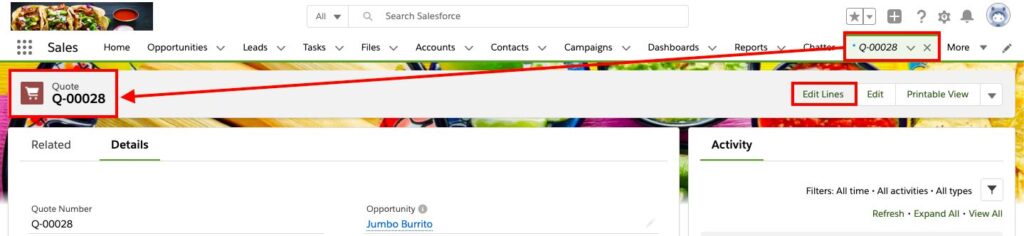
The Quote Line Editor allows you to view all of the quote lines and apply necessary changes across the entire quote or to individual lines
Keep in mind that both standard buttons and custom actions can be configured by the Salesforce CPQ administrator
Here are the standard buttons by default
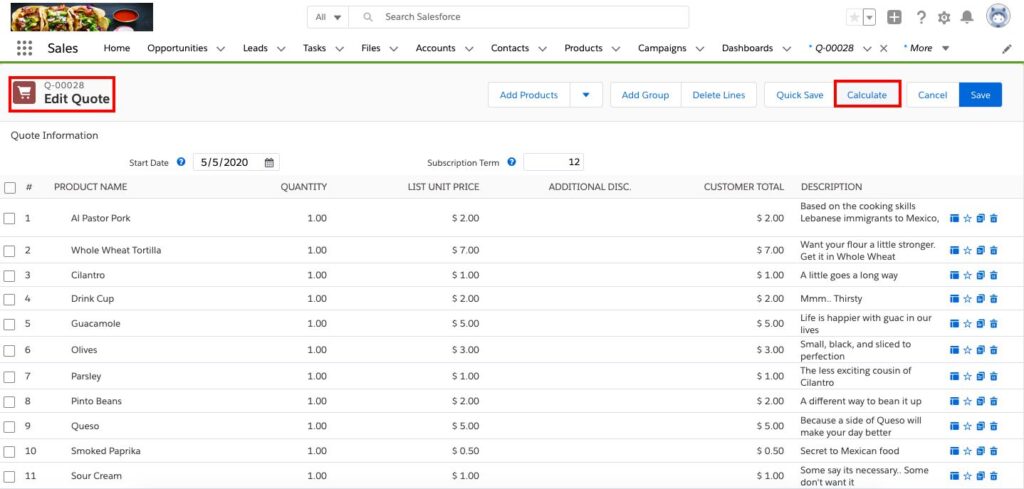
CPQ applies price calculations to the quote, which includes relevant price rules and product rules. Click the Calculate button to recalculate the quote’s prices after changes are made.
The user can select several lines and then click this button to delete all the lines at once
Keep in mind, this button is only made visible if the Salesforce CPQ administrator has enabled it
This enables the user to add line item groups to the quote.
The user can save their quote line changes without leaving the quote line editor
The user is able to reset all user-applied discounts
The user can save their quote line changes and return to the quote detail page
This returns the user to the quote detail page without saving their changes

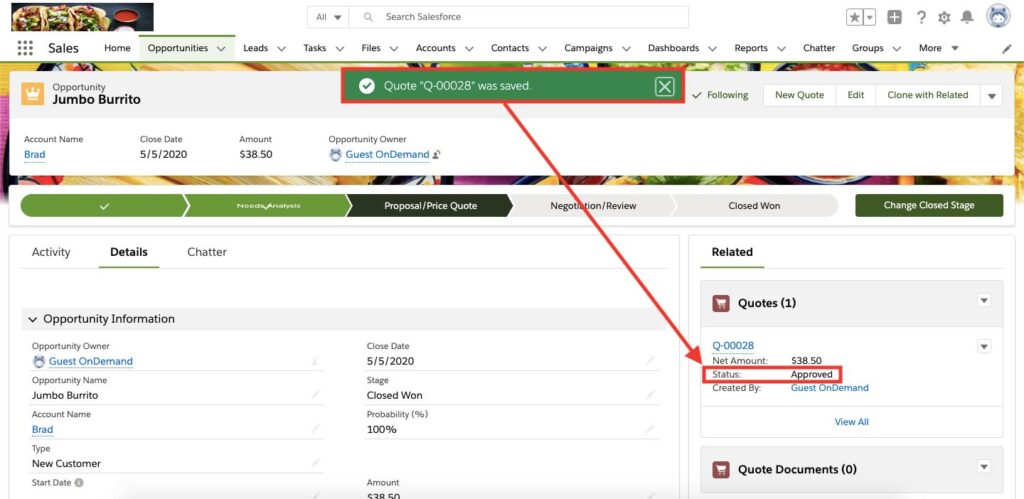
–Use case example: You want to update the Status field of the Quote on an Opportunity
-From the Opportunity record in the Quotes related list
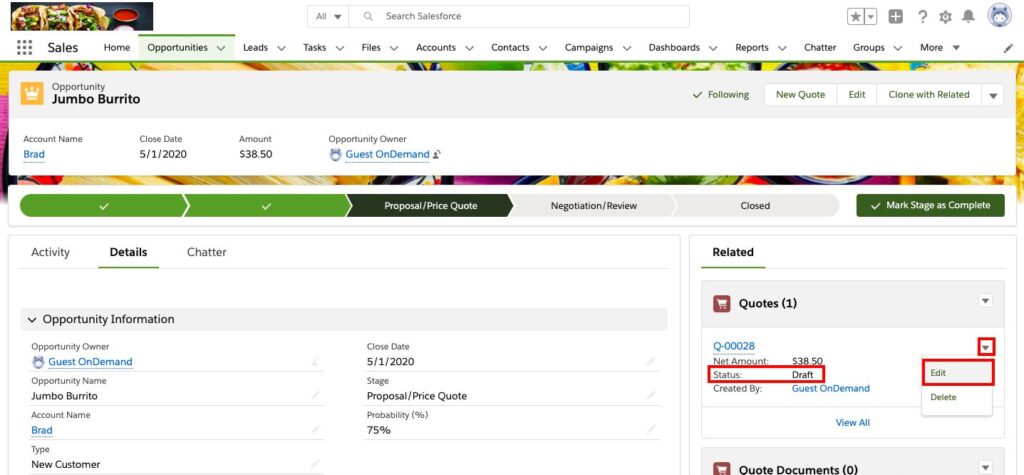
-Locate the Status field
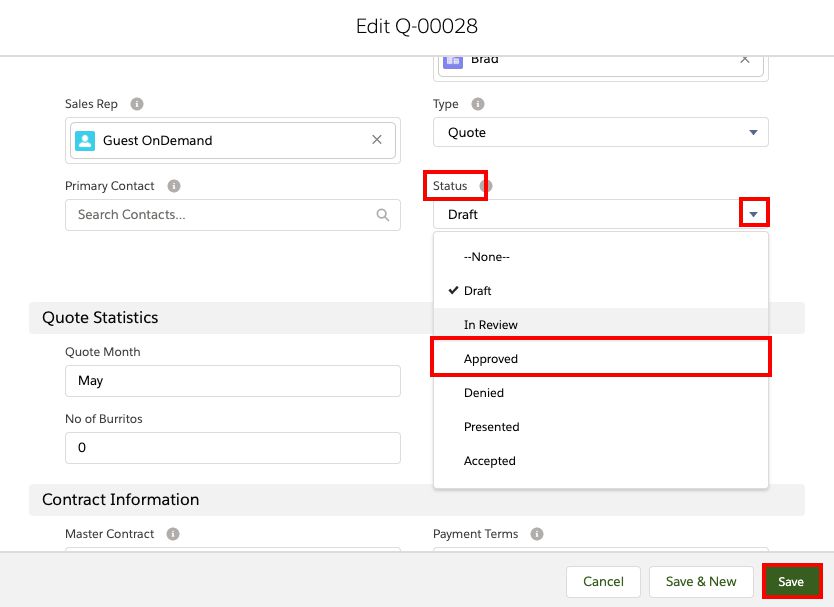
-You will receive a green confirmation banner telling you: Quote Q-#### was saved
-Take a look at the Quote you edited and the Status will now show Approved
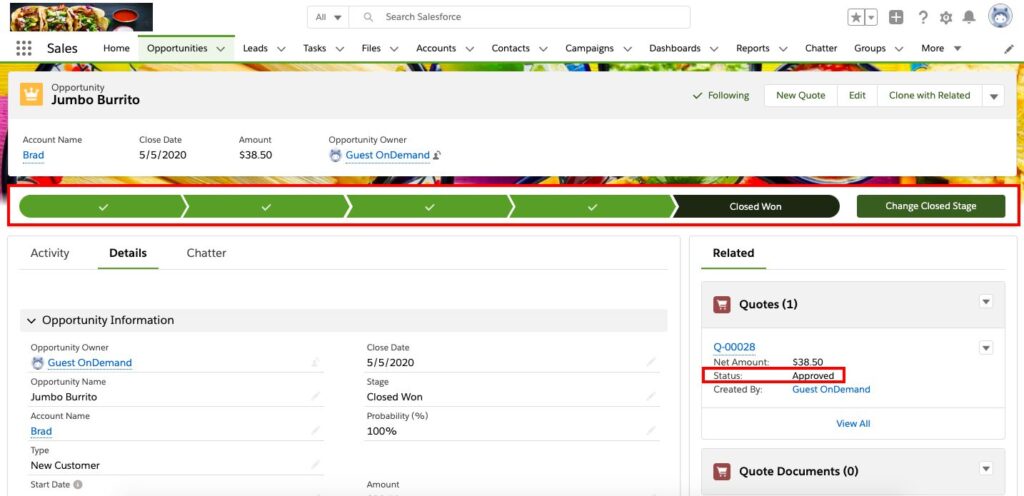
-Since you updated the Status of the Quote, the Path was automatically updated
-The Stage moved from Proposal/Price Quote to Closed Won
With Quote Line Groups, you can apply discounts or obtain totals for specific sets of quote lines by organizing them into groups within the Line Editor. When you make the first group on a quote, Salesforce CPQ places all the line items into that group. From there, you can make more groups and drag products between different groups. You can also edit the Quote Line Group object’s Line Editor fieldset to change group fieldsets.
EXAMPLE:
Let’s get into how to create Quote Line Groups in Salesforce CPQ. You’ll use Quote Line Groups to organize related quote lines in your quote. You can also apply field values to all of the group’s quote lines at once, saving your sales representatives from the repetitive task of changing all field values separately.
From the Quote Line Editor
1) Click Add Group
2) Click Add Products to open the Product Selection page
3) Click to select the Products to add to your group
4) Click Select to return to the quote line editor
5) Click Add Group
6) Click Ungroup
7) Click these fields to edit them
8) Click the dropdown arrow ▼ next to Add Products
9) Click Clone Group or Delete Group
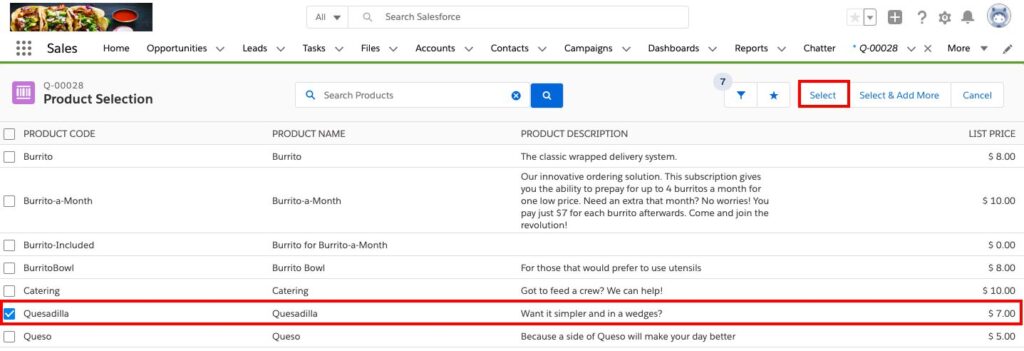
-From the Quote record
1. Click Edit Lines
2. Click Add Products

-Locate the Product(s) you want
3.Click in the box to the left of the Product(s) to add a check
4.Click Select
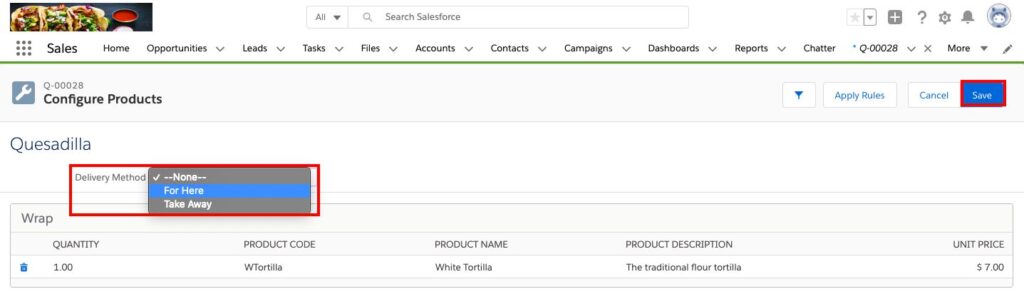
-In the Configure Products screen, make the necessary adjustment(s)
5.Click the drop-down and make a selection
6.Click Save
Creating and managing Quotes is one of the most important features of the Salesforce CPQ and something that your sales representatives will likely be doing often on the platform. Let’s get into how to create and manage your Quotes.
How to create new Quote:
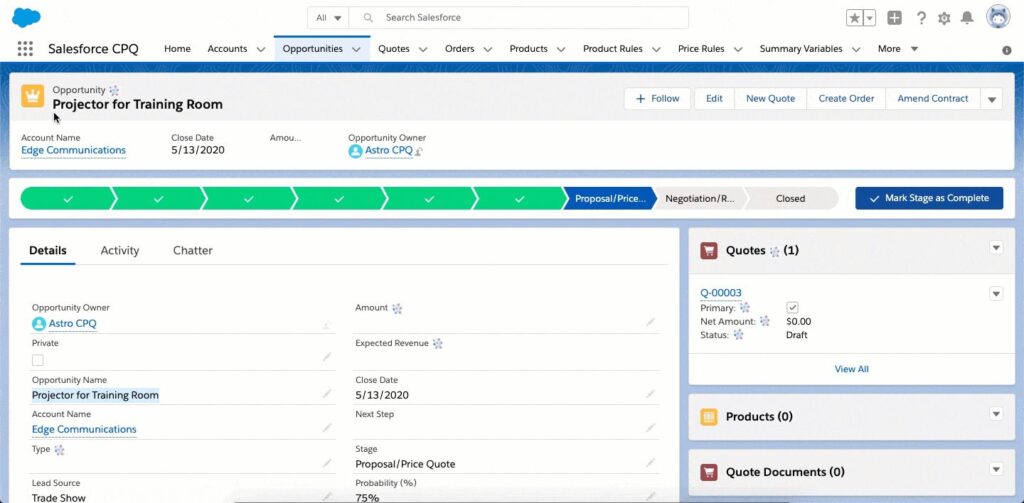
Line items are added to the Quote Line Items related list
The grand total in the detail section is the sum of the related line items
The discount is the average discount for the line items
The sort order updates after related opportunities are synced
The PDF quote also includes the sort order
USER PERMISSIONS NEEDED
To view quotes: Read on Quotes
To create quotes: Create on Quotes
To add quote line items: Edit on Quotes
AND
Read on Products and Price Books
Cloning Quote Lines saves your sales representatives time and prevents them from needing to manually recreate quotes over and over again.
You can also clone one or more products from a quote line group or solution group directly to another
From Setup – Select Enable Multi Line Delete in the Line Editor package settings to enable this feature.
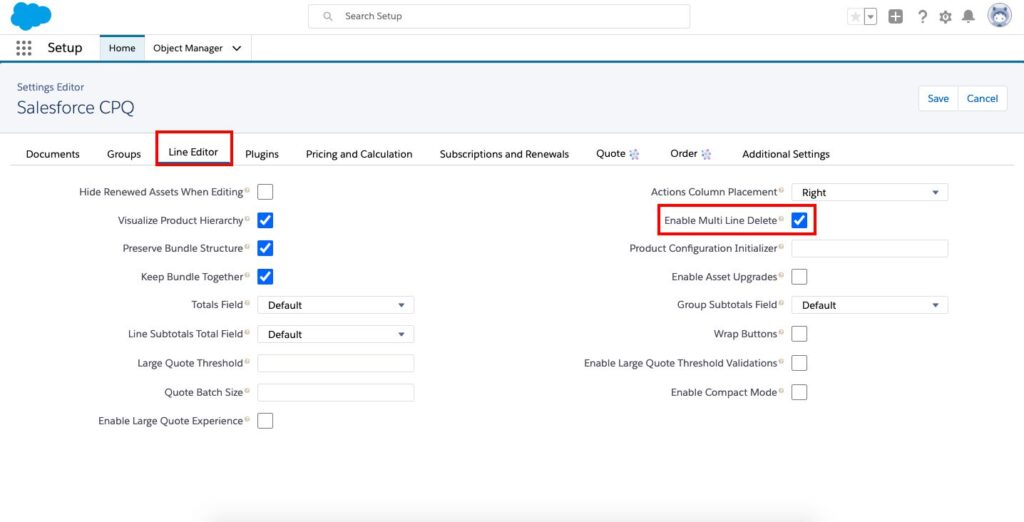
To clone between groups, select the checkbox for at least one line in a group, and then select the clone icon for any of the selected lines
Click Clone to show a modal where you can choose any number of groups to clone your selected lines into
Bundles and MDQ products maintain their structures when cloned between groups
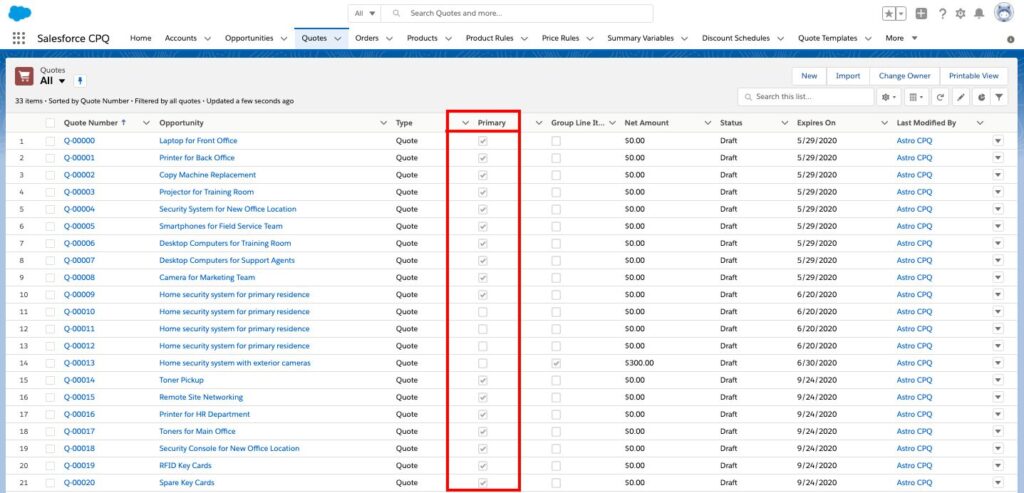
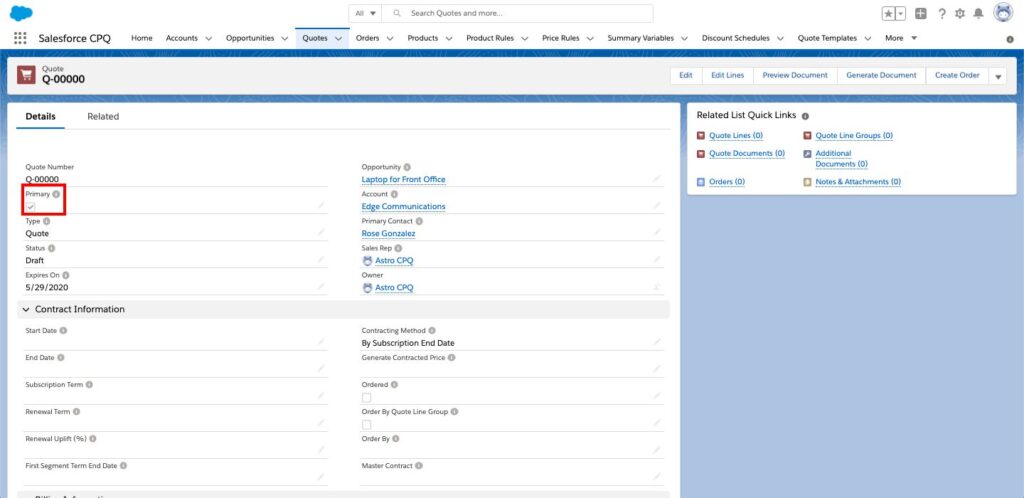
- The Primary field is used to designate the quote as the primary one on the opportunity and sync quote line items with opportunity line items.
- The Primary Quote designation can be located in two places in CPQ
1) On the Primary column on the Quote list view
2) Primary is a checkbox field on the Quote record
The Quote Calculator performs a calculation when a user or process does any of the following actions:
The Calculate button is available on the quote detail page
Once your sales representative makes a quote or completes an order, all that information about that deal or potential deal will be stored in a Contract. These Contracts also contain fields to help you customize renewals or make amendments to the deal. Let’s talk about how to create a Contract in Salesforce CPQ.
-From the Opportunity record
-In the related list view for Contracts

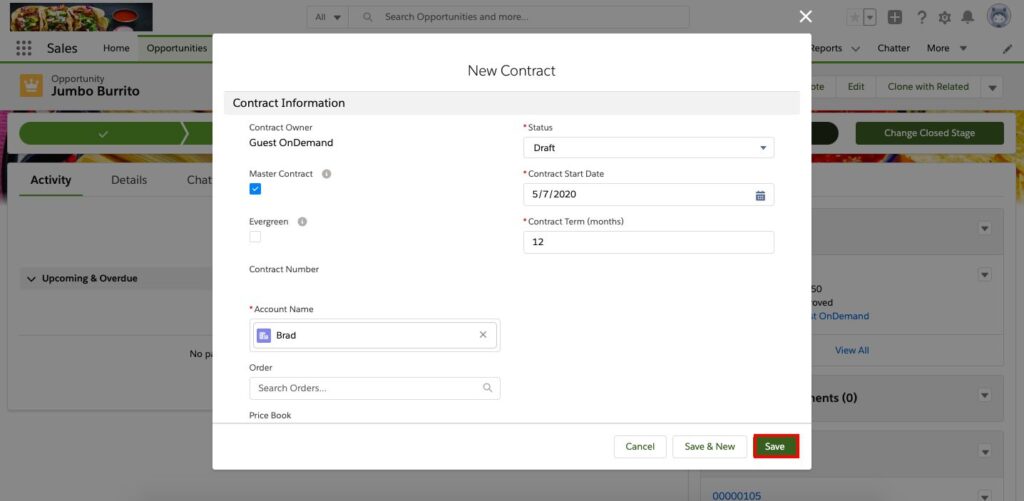
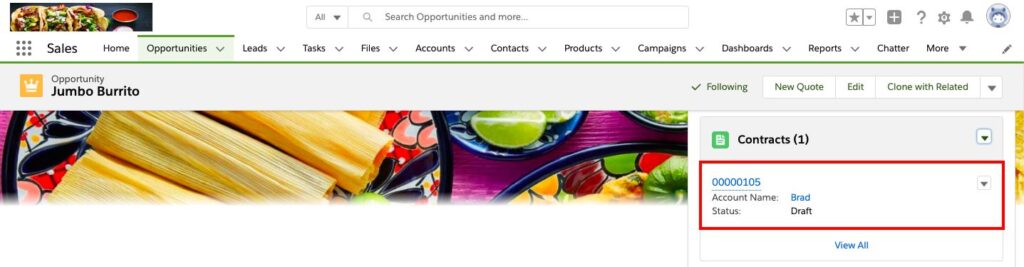
-You will be returned to the Opportunity record view
-You can now see the new Contract appears on the Contract related list
5.Click the Contract number to view the record
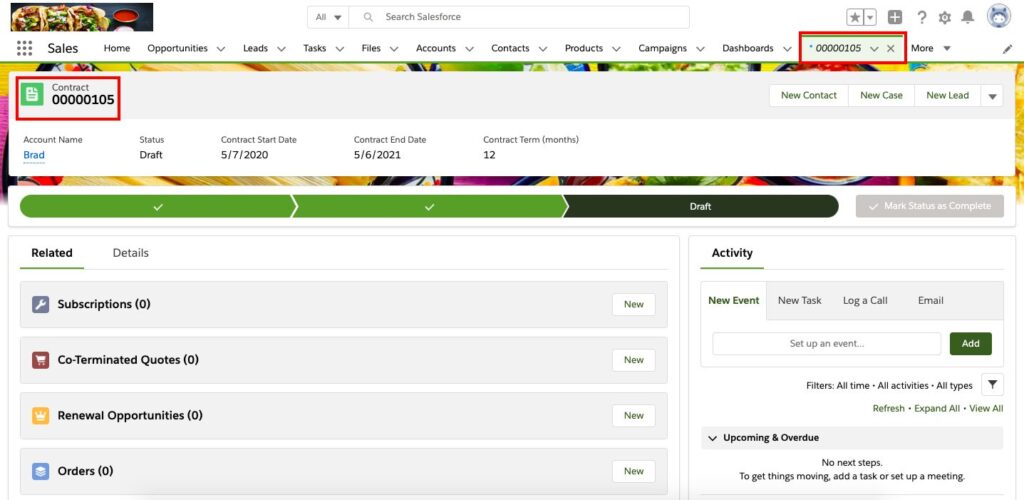
-Below is the example new Contract I created
-The number in the tab corresponds with the Contract record number
-From the Opportunity record
-In the related list view for Contracts
-You will be returned to the Opportunity record view
-You can now see the new Contract appears on the Contract related list
5.Click the Contract number to view the record
-Below is the example new Contract I created
-The number in the tab corresponds with the Contract record number
Considering that a Contract contains information and assistance on making amendments and renewals, it’s important for your Order to connect to a Contract to make those adjustments in the future and have all the information you need on a deal in one place. Here, we’ll unpack how to make a Contract from an Order.
-From the Order record
1) Click to add a check to the box under Contracted
2) Click to save the changes
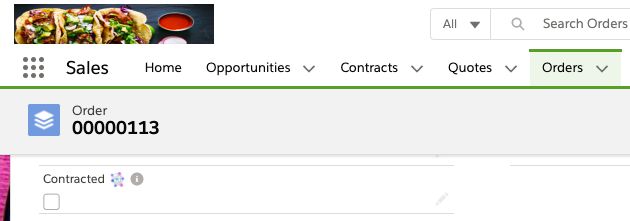
-By default, Salesforce CPQ creates a contract for each group of subscription order products with matching end dates
-Salesforce CPQ requires the following objects and settings when the user creates a Contract record from an Order
-CPQ will create a subscription record for each of the order products
Sometimes, adjustments need to be made to a customer’s Contract. Here’s how you would Amend a Contract in Salesforce CPQ.
-Example of why an amendment might be needed:
A customer has called in between the Start and End Date, and they want to make a change to their Contract
-From the Contract, that you want to amend:
1) Click Amend

-When you click Amend, two things immediately happen:
2) Click Edit Quote on the newly created Quote
3) Update Quantity hit Calculate
Click Save
Lastly, review the new Quote
Be sure to pay attention to the following fields on the Contract record
We’ve already discussed how to Amend a Contract through a Contract in Salesforce CPQ, but now we’ll walk you through how to Amend a Contract through an Account.
-From an Account
-Look under the Contracts related list
1) Click on a Contract Number to open a Contract
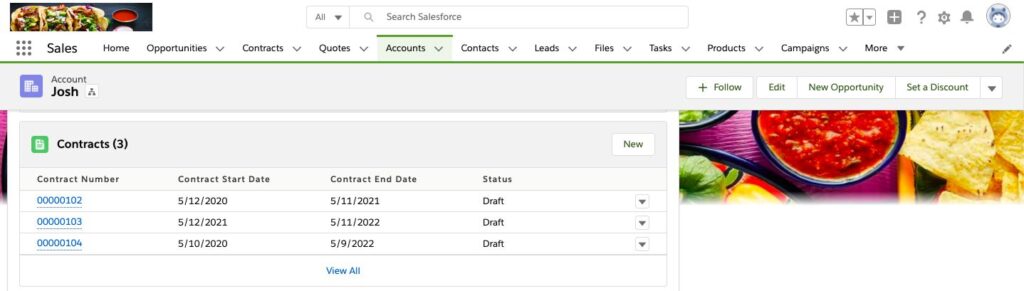
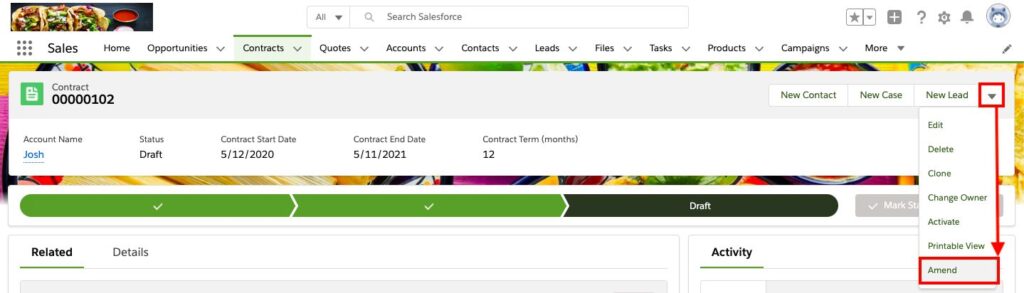
-From the Contracts view
2) Click the down-pointing triangle ▼
3) Click Amend
-Now you will be viewing the Amend Contract
4) Click Amend
-The screen will load and transition…
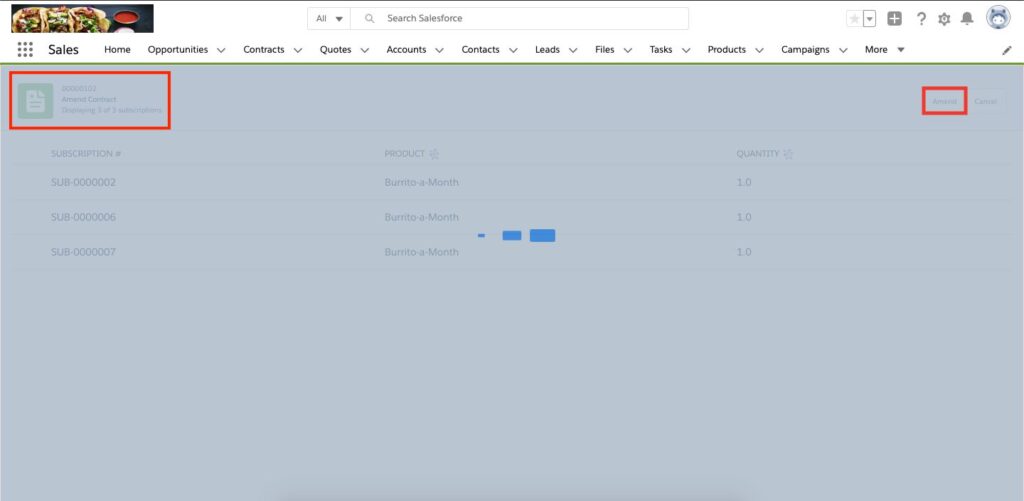
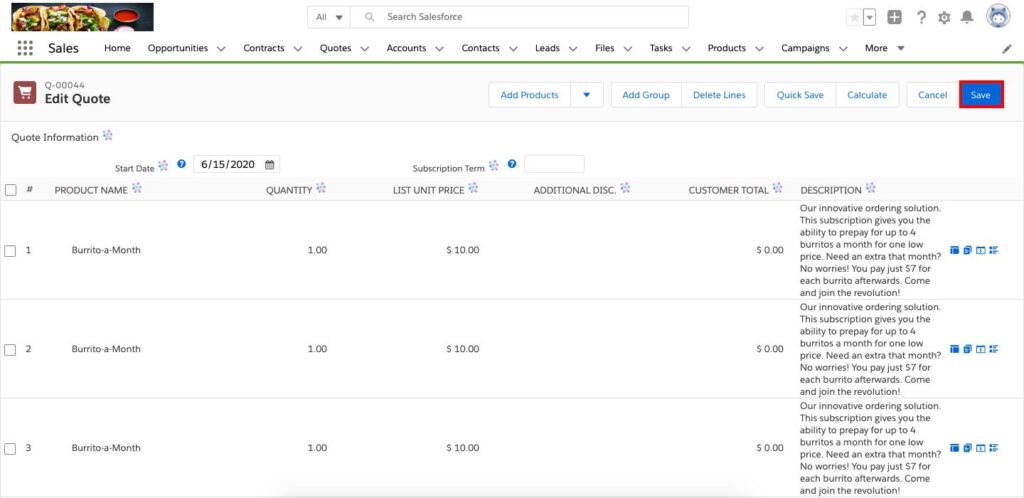
… then you are routed to the Edit Quote screen where you can make any necessary changes
5) Click Save
-The Quote screen will appear and you are able to see the Opportunity shows Amendment for contract # (this number will be whatever corresponds to the Contract you amended)
-The Type field will show Amendment
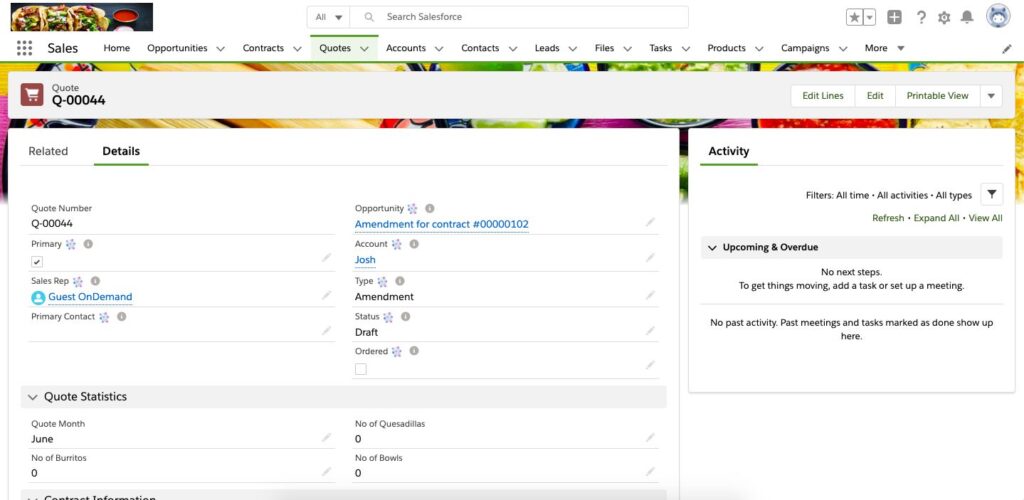
When a Contract is generated by Salesforce CPQ, the Quote (or Order) Start Date and Subscription Term or End Date are used to calculate and populate the Contract’s Start Date and End Date. The result may be a Contract End Date that does not match your original Quote or Order.
Salesforce CPQ sets the dates on each contract record based on a few settings. The Contract Start Date inherits the order’s Order State Date field value. The Contract End Date inherits the shared end date of the order products on a particular contract.
Contracted prices allow the user to negotiate a price for a product and then use that price on future quotes within the same account. The page layout and field-level security settings determine which fields are visible and editable on contracted price records.
If the user auto-generated the contracted price, this field refers to the contract related to the quote. This allows users to quickly find the contract that established the contracted price.
The discount percentage that the sales rep negotiated with the customer. During quote line list price calculation, Salesforce CPQ applies this discount to the product’s price book entry. Salesforce CPQ ignores any block pricing on the product. The user can set either a price or a discount on a contracted price record, but not both.
If the user has generated a contracted price from a product that has a discount schedule, then this field refers to the discount schedule on the product record. If the user manually created the contracted price, they can define the discount schedule on the contracted price record.
As long as the contracted price is active, the discount schedule on the Contracted Price record overrides the discount schedule on the product record.
When a sales rep adds a product with a contracted price to a quote, Salesforce CPQ evaluates the current date. If the current date falls between the contracted price’s effective date and expiration
date, including both of those dates, Salesforce CPQ uses the product’s contracted price instead of the product’s price book price.
When a sales rep adds a product with a contracted price to a quote, Salesforce CPQ evaluates the current date. If the current date falls between the contracted price’s effective date and expiration date, including both of those dates, Salesforce CPQ uses the product’s contracted price instead of the product’s price book price.
Salesforce CPQ prevents further discounting for the product related to this contracted price.
The price the sales rep negotiated with the customer. During quote line price calculation, this value overrides the quote line’s list unit price. The user can set either a price or a discount on a contracted price record, but not both.
All quote lines for this product on this account receive the contracted price defined in this record.
If you look at your Discount Schedule as it is applied, make sure to understand if it is Range vs Slab
Use discount schedules to create volume discounts based on quantity or terms for your quote lines. Set the quantity or term ranges in tiers of percentages or amounts of currency.
Discount schedules provide tier-driven discounts to the list price of your quote lines. For example, you can sell routers for $25 each, but apply the following discounts based on how many routers a customer buys. In this case, you create a discount schedule with three tiers.
Use the Type field to determine how Salesforce CPQ applies the discount.
The Discount Unit field defines the type of discount applied to your quote line:
NOTE The Discount Unit value Price isn’t supported.
If a product falls under a discount schedule, a calendar icon appears on any of its quote lines in the quote line editor. You can hover over the icon to show the discount schedule’s name, discount unit, and all its discount tiers.
A discount tier represents a single discount level for your discount schedule.
For example, 1 through 10 products receive a 10% discount. You can create a tier in your discount schedule’s Discount Tiers related list.
The Lower Bound value is the smallest value needed for the discount. The Upper Bound value is the highest value needed for the discount. However, the Upper Bound value isn’t inclusive. Make sure that your upper bound is one digit higher than the value you want to include. For example, if you want your tier to include values 1 through 10, set your Upper Bound value to 11.
If you select the Allow Override field on your discount schedule record, sales reps can edit Discount Tier fields within the quote line editor.
NOTE Sales reps with read-only access to discount tier and its fields can create discount tiers by cloning an existing record. To prevent them from creating or modifying discount tiers, remove the Clone button from the page layout or remove the sales rep’s user access to the Edit Discount Tiers custom page.
Apply a discount schedule based on the length of your subscription product’s term. This feature is useful if you want to provide an incentive for longer subscriptions.
Slab discount schedules can align with block-priced products to create price schedules. This setup creates a price schedule that moves from flat pricing to per-unit pricing.
You can let your sales reps edit discount schedule tiers, bounds, units, and discount values from within the quote line editor. This feature is useful if you want to give sales reps greater control over creating or managing discount schedules.
When you’re negotiating prices with a customer, you can change the range of discounts in your discount schedule. Use the quote line editor to change discount schedule tiers, bounds, units, and discount values.
By default, a discount schedule targets a product’s list price. However, admins can also apply a discount schedule to a product’s cost. This feature is useful for companies that price their products based on cost and markups instead of the list price and discounts.
To drive your discount schedule by a value other than the quote line’s quantity, use a custom quote line field in your range or slab discount schedules.
Apply a discount schedule and a block price to the same product record. When sales reps add that product to a quote, Salesforce CPQ applies discount schedule pricing to units that fall outside the product’s block pricing tiers.
Discount schedule fields allow you to customize the scope and discount value of your discount schedule. With certain page layouts and field-level security settings, some fields aren’t visible or editable.
When you’re ready to use Products in Salesforce CPQ, you can add them directly to an Opportunity. These steps will show you how.
-From an Opportunity record
-In the Products section
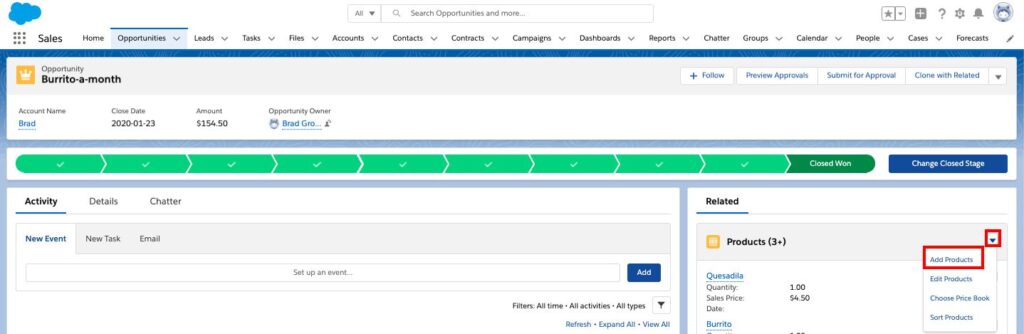
1) Click ▼ to display the drop-down
2) Click Add Products
3) Search for the Product(s) you want to add
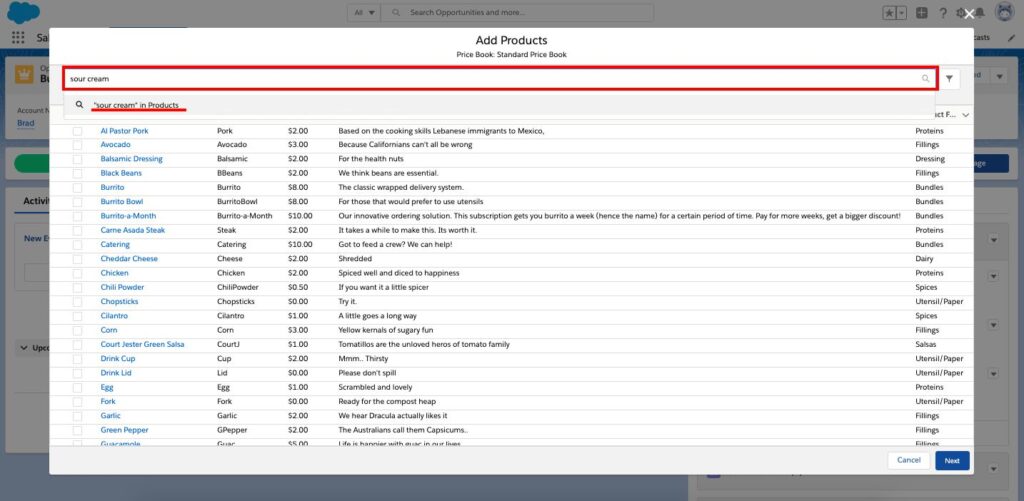
4) Add a check in the box to the left of the Product
5) Click Next

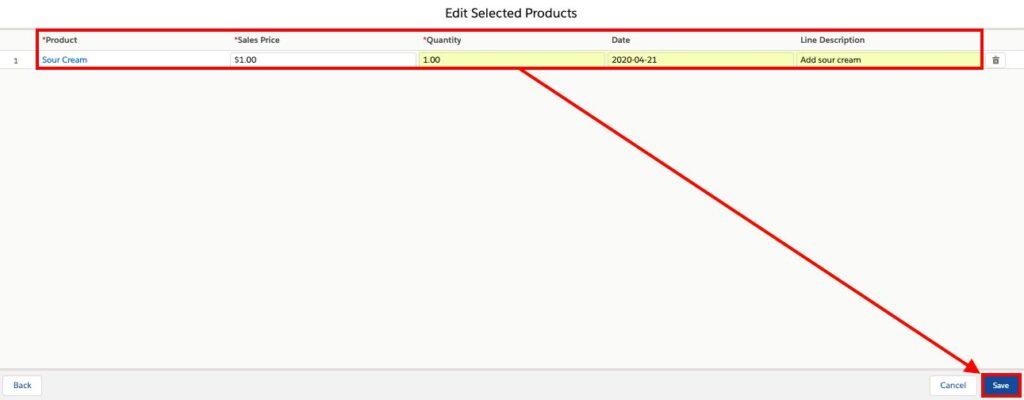
6) Update the *required fields as needed
7) Click Save
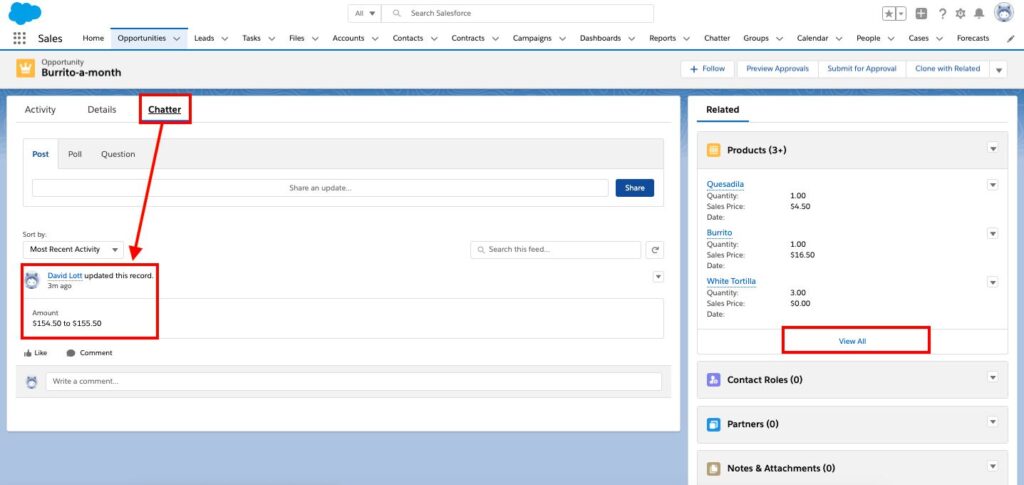
-You will return to the Opportunity
8) Click View All to see the Product you added if it’s not visible
9) Click Chatter and the system posted the change automatically
If you need to find a particular Product, Salesforce CPQ’s Filters can give you a hand. Here’s how you can use Filters to find a Product.
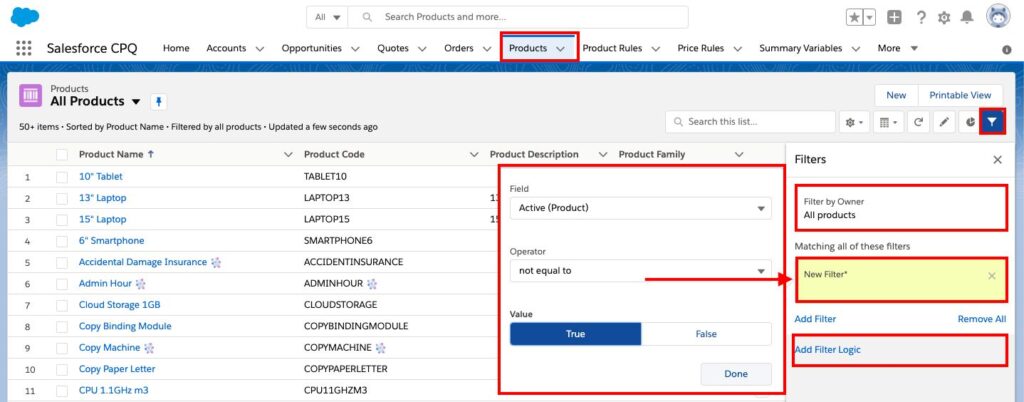
-From the Products object list view (I have All Products pinned as my view)
1) Click the funnel icon
2) Filter by Owner All products is the only choice for the first filter which is based on your list view that is being used
3) Click Add Filter
4) Click Done when you’ve set the criteria for the filter
5) You can add Filter Logic
-When you have completed setting up all parts of the new Product filter, click Save
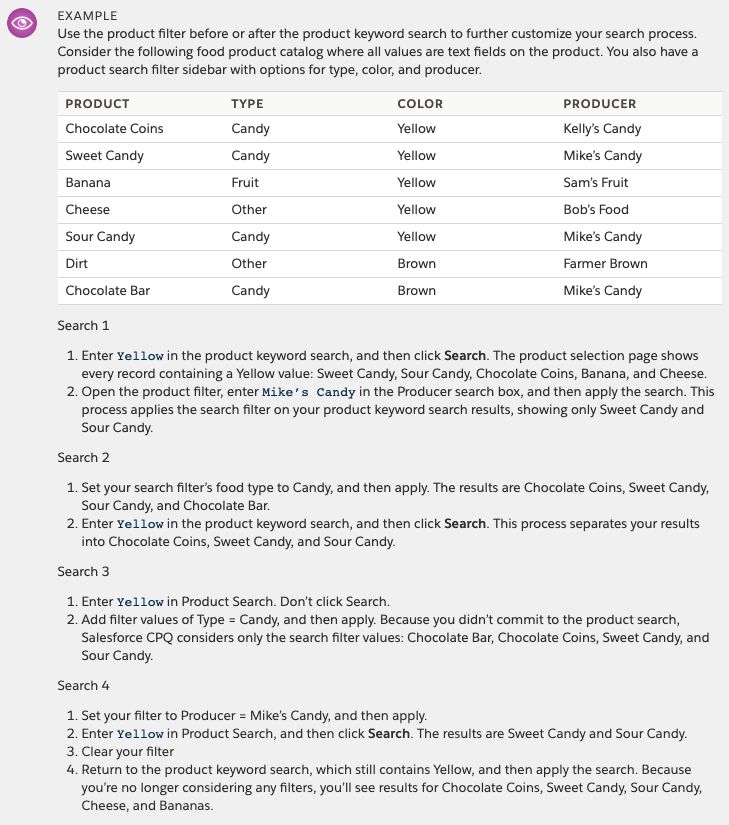
Filters aren’t the only way you can find a Product in Salesforce CPQ. Here’s how you can use a Keyword Search to find a Product.
-If your Product catalog has more than 2,000 Products, then keyword search will be N/A
-Please keep in mind the Product Keyword Search will not search favorites or picklist field values
The Product Configurator is a tool that can customize the different attributes of a Product so the result is the Product that the customer needs and wants. This tool ensures that your sales representatives can tailor a Product to one that a customer is ready to purchase and keeps a record of these adjustments. These steps will walk you through using the Configurator to configure a Product.
Click Add Products to enter the Configurator
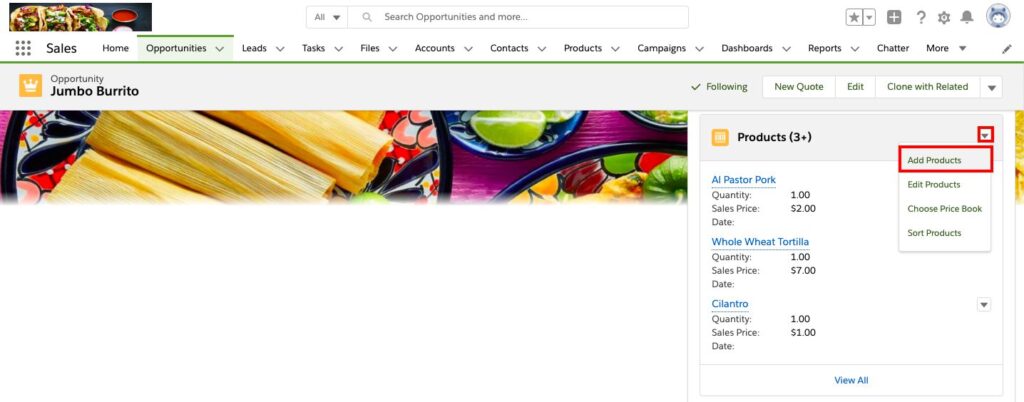
Please keep in mind the Products must be set up by the CPQ admin before the Configurator is useful
The Configurator allows the user to perform the following actions in CPQ:
CPQ favorites let sales reps save and share their favorite products, configured bundles, or quote line groups for use on future quotes
CPQ admins also manage favorites by creating, sharing, editing, and deleting their favorite records
Use case: If I am a manager, I can share my CPQ Favorite with the team about our current promotion
Having trouble with your Salesforce CPQ? The first thing to do is ensure that your Salesforce CRM is equipped with the right settings for the CPQ. Salesforce has a number of tools, including their Salesforce CPQ and Salesforce Knowledge Base. No matter what Salesforce tool you want to use, you may have to adjust the settings of your greater Salesforce CRM.
For Salesforce CPQ, you must enable: email deliverability to all users, Chatter, Orders, and CRM content. From there, you can run the installation script.
After installation, you also need to authorize the Salesforce CPQ calculator by:
– From the Edit Quote view
– Look at the first line and at the end, there are five icons that appear which are quite useful

1) The first icon on the left of the group is Align to Usage
2) The second icon is a Star which is used to Add To Favorites
3) The third icon is the wrench which is used to Reconfigure Line
4) The fourth icon is stacked papers which is used to Clone Line
5) The fifth and final icon is a trash can which is Delete Line
Click on the Quick Save so you do not lose the work you put into building your quote
Quick Save will save your changes and allow you to continue editing the Quote

Please keep in mind the Salesforce org must have the CPQ+ version installed in order to use Advanced Approvals
A typical use case for Advanced Approvals: A customer’s products are charged in a usage basis Service costs $500 USD for the first 100 hrs
The CPQ Admin can automate and customize the approval process with the Advanced Approvals package. They can require approvals when records meet certain conditions, automate resubmitted approvals, and control the order that approvers receive requests.
Advanced Approvals uses approval rules to determine which approvers receive an approval request and the email template used to send the requests.
The Block Price allows you to assign a fixed price to a product based on quantity, overriding the automatic calculation of quantity * unit price.
Slab Discount Schedules with Block PricesSlab discount schedules can align with block-priced products to create price schedules. This setup creates a price schedule that moves from flat pricing to per-unit pricing.
The lower bound of the first slab discount tier must equal the upper bound of the last block tier. Remember that a tier’s upper bound must be one digit above the value you want to include.
*Please keep in mind that a tier with 10 products has an upper bound of 11.
EXAMPLE
You have a product with the following pricing and discount values.
– When you order this product, Salesforce CPQ creates this tiered price schedule.
– When you order 60 units of the product under this price schedule, Salesforce CPQ prices the order products as follows.

With Salesforce CPQ, your sales team can deliver accurate, transparent, and comprehensive price predictions to prospects, which can give your brand’s reputation and sales a boost.
However, Salesforce CPQ comes with many functionalities, which can be both a boon and a challenge. Though companies that have integrated Salesforce CPQ typically see higher sales and a shorter sales cycle, many users also say that the platform has a steep learning curve.
By providing just-in-time learning and easily accessible training resources, Spekit ensures your sales reps can quickly ramp up their skills and knowledge. This leads to increased productivity, improved accuracy in sales operations, and ultimately, a more streamlined and efficient sales process.
Sales reps can confidently embrace changes, knowing that whenever a Salesforce CPQ question comes up, the answer is only a click or a hover away.